Cloud Training
From your computer to the cloud
A 90-minute journey through the six ideas that power every cloud service you use.
Layer 0 · Intro · 5 min
Quick show of hands.
Who used ChatGPT this week?
Who plays Minecraft?
When you asked ChatGPT to help with homework, it didn't run on your phone. When you joined a Minecraft Realm, the world wasn't on your device. Both ran on a computer somewhere else. Where? Whose? How many?
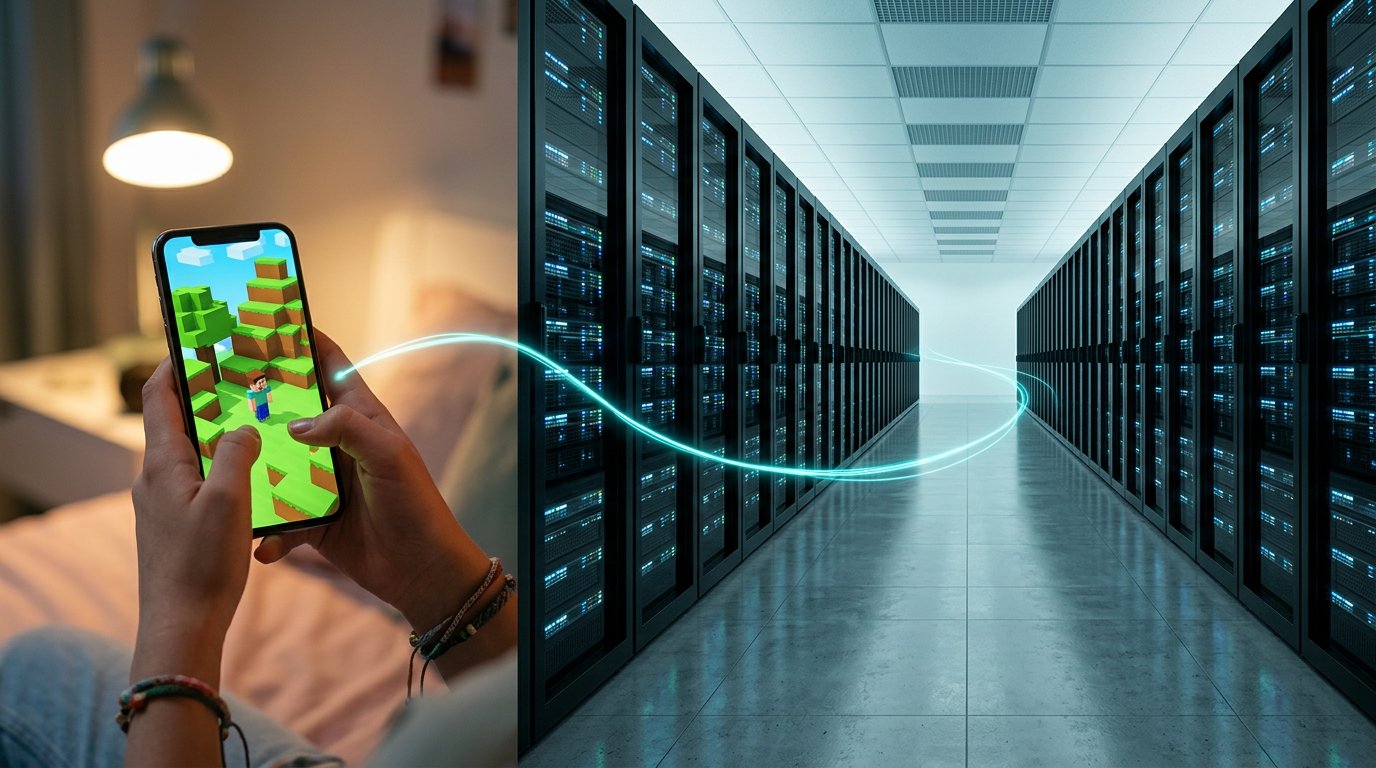
Your screen is here. The computer doing the work is over there — maybe in another country. Today we follow that thread, from one end to the other.
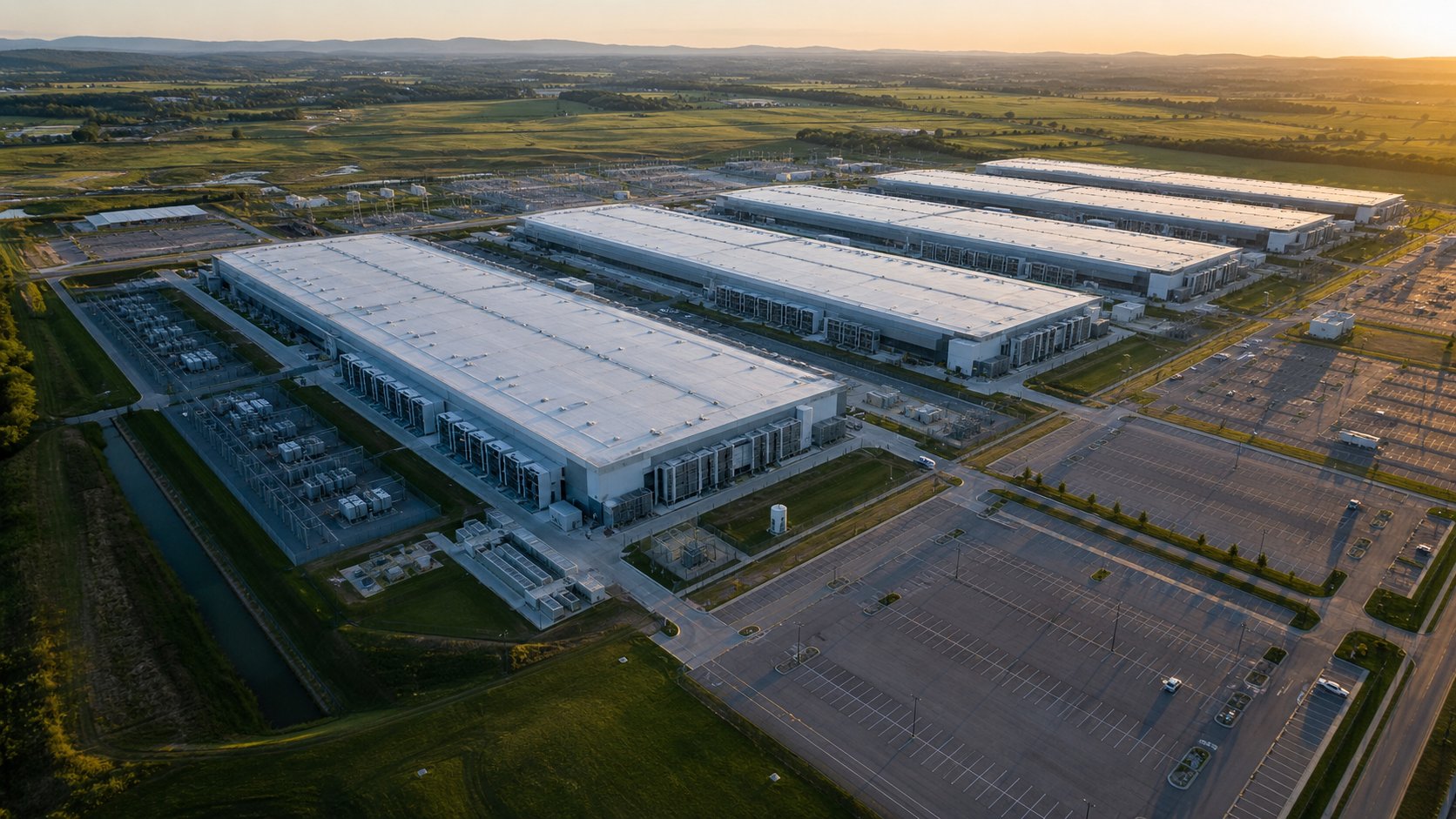
One physical computer can pretend to be 20 to 100 separate computers at the same time.
That's how thousands of Minecraft worlds and millions of ChatGPT conversations happen in parallel.
Here's the route. We start with something you already know — a computer. By the end, we're at Azure. Seven steps, each one adding one idea.
If at any point you feel lost — point at the roadmap and ask which layer we're on. We'll find our way back.
By minute 85, you'll be able to explain to a friend what "the cloud" actually is. Here's the spoiler — and we'll come back to this sentence at the end:
Azure isn't magic. It's the same computer you have at home, plus five ideas stacked on top: a stronger version of it, an OS that runs without a screen, a way to talk to other computers, a way to slice one into many, and someone else owning the building.
You won't fully get this yet. That's the point. Let's go to Layer 1.
What is a computer, anyway?
Forty-five years of computing in eight minutes. Same four jobs the whole time.
Layer 1 · Computer · 8 min
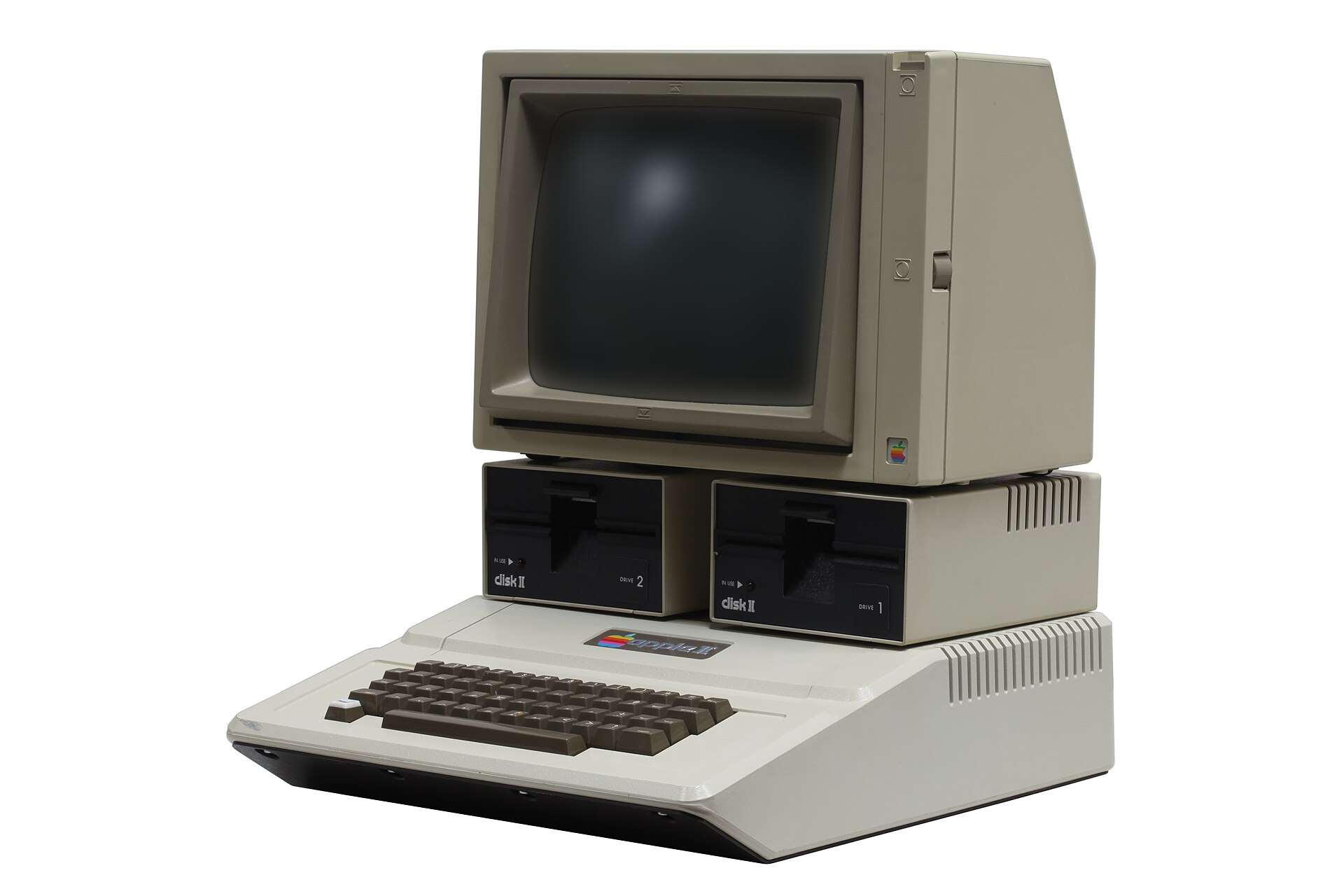
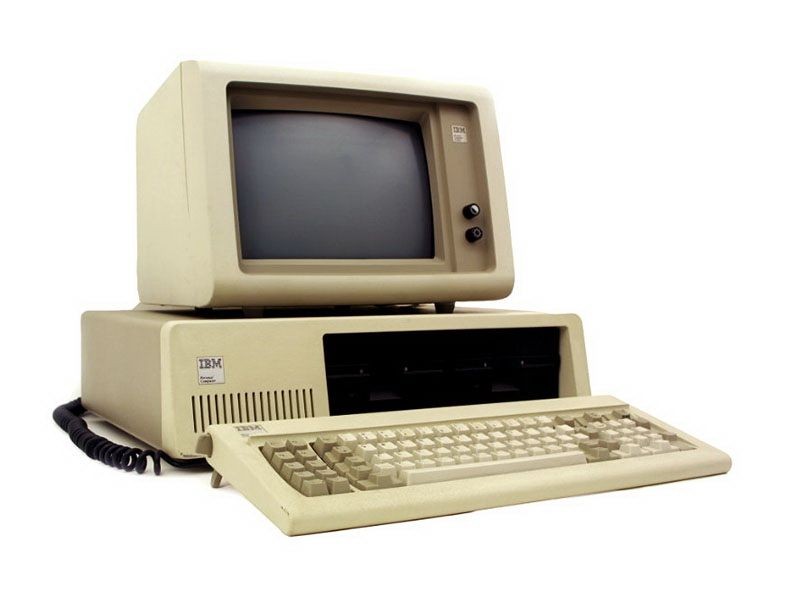
Meet the ancestors. The first computer a family could buy, and the first computer a company could trust. Forty-five years later, your laptop is still doing the same things — just faster, smaller, more of everything.
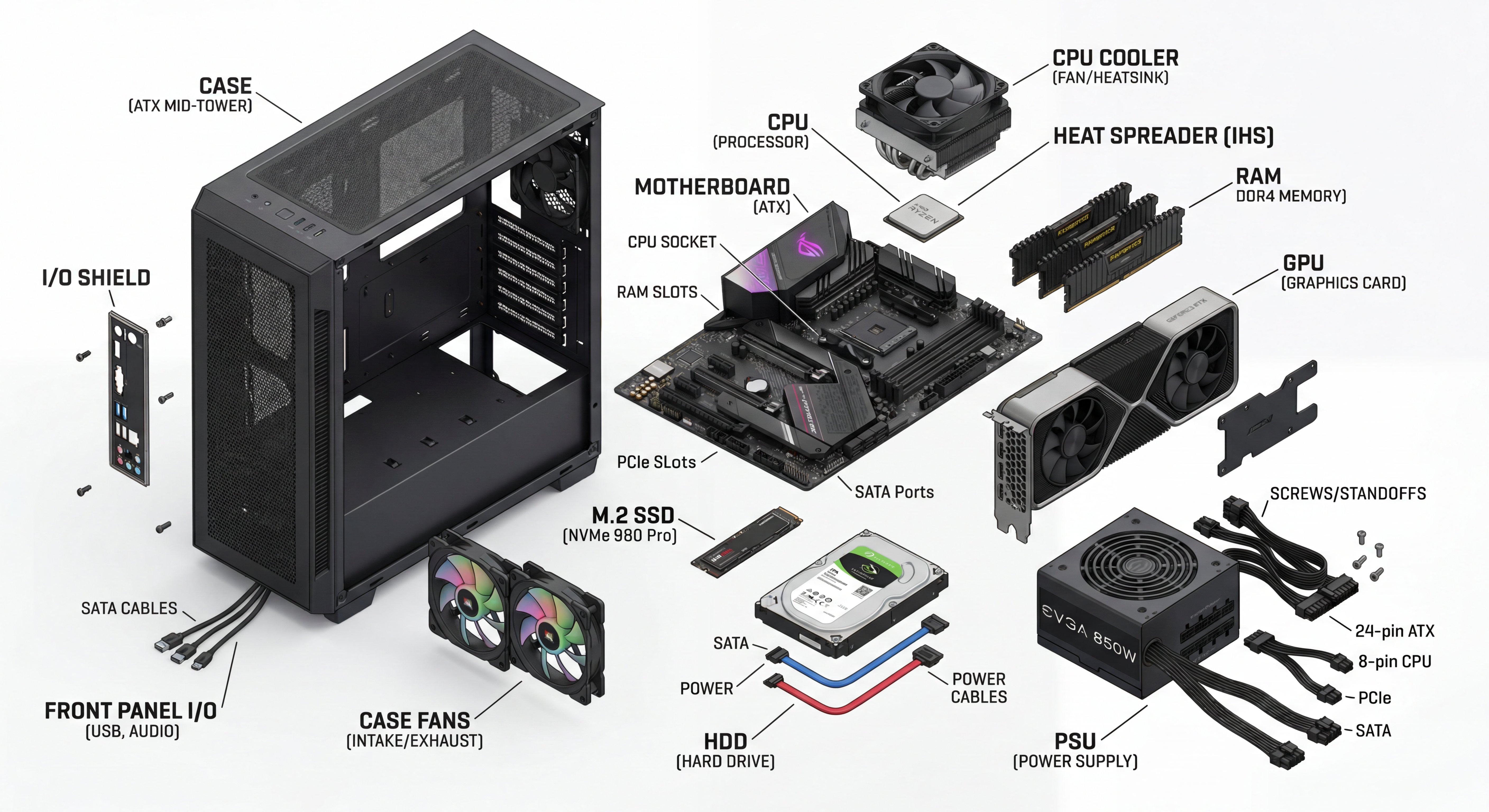
Forty-five years after the IBM PC, this is what's inside a desktop right now. Same jobs being done — but look at the parts.
Every computer — IBM PC, today's monster, your phone, a cloud server — has the same four roles.
| Role | What it does | Hardware today |
|---|---|---|
| Compute | Does the thinking. Runs your code, runs your game, runs everything. | CPU |
| Memory | Where work happens right now. Disappears when you reboot. | RAM |
| Storage | What survives a reboot. Files, programs, photos, OS. | SSD / HDD |
| Network | How it talks to other computers. The internet doesn't work without this. | NIC |
So how did we get from beige boxes to that monster? Eight milestones did the work — three of them really matter for what we're building toward today.
Forty-five years, eight milestones, faster parts every decade.
But here's what hasn't changed: none of this does anything by itself. The CPU, the RAM, the storage, the network — dead silicon without something to wake them up, coordinate them, and decide which program runs when.
That coordinator is the operating system. Next layer.
The coordinator you've never met
The invisible thing keeping your computer alive — and the trick that makes virtualization possible.
Layer 2 · OS · 10 min
Right now your laptop has YouTube, Discord, Spotify, a game downloading, and a hundred tabs all wanting to run. Your CPU has 8 cores. Who decides which program gets a core, and for how long?
The CPU only speaks one language — about 1,500 instructions burned into the silicon at the factory. Add, move, jump, compare. That's the entire vocabulary. Forever.
int main() {
    int a = 5;
    int b = 3;
    return a + b;
}
main:
    mov  eax, 5
    mov  ebx, 3
    add  eax, ebx
    ret
Five C lines on the left. Five CPU instructions on the right. The compiler did the translation — turned your code into the chip's vocabulary.
But there's a catch. Programs aren't allowed to touch the hardware directly. Not the screen, not the disk, not the network. They run in a sandbox.
So how does anything get done? The program asks the kernel — through a system call. The kernel checks, the kernel acts, the kernel hands the result back. And the CPU itself enforces the rule — programs physically can't skip the kernel. Stop your heart, you die. Stop the kernel, your computer freezes.
Same compiler, slightly bigger program — hello world. And it explodes.
#include <stdio.h>
int main() {
    printf("Hello, world!\n");
    return 0;
}
main:
    push    rbp
    mov     rbp, rsp
    sub     rsp, 16
    lea     rax, [rip+.LC0]
    mov     rdi, rax
    call    printf@PLT
    ...                  ; ~40 more lines like this
    ...                  ; (libc, stack frame, calling convention)
    mov     eax, 0
    leave
    ret
And here's the kicker — printf isn't even a system call. It's a library function that eventually calls a real system call:
printf("Hello, world!\n");
write(1, "Hello, world!\n", 14); // ← system call
Your Windows kernel: ~30 MB of compiled code. Chrome: ~180 MB. Cyberpunk 2077: ~80 GB. All instructions like these — just more of them.
Four jobs. Every operating system does these. The kernel sits in the middle of every single one.
| Resource | Role (Layer 1) | What the kernel does |
|---|---|---|
| CPU | The worker | Scheduling — slices CPU time among hundreds of programs |
| RAM | The desk | Memory management — assigns each program its own area |
| Storage | The filing cabinet | File system — every read and write goes through here |
| Network | The phone line | Networking — every packet in or out |
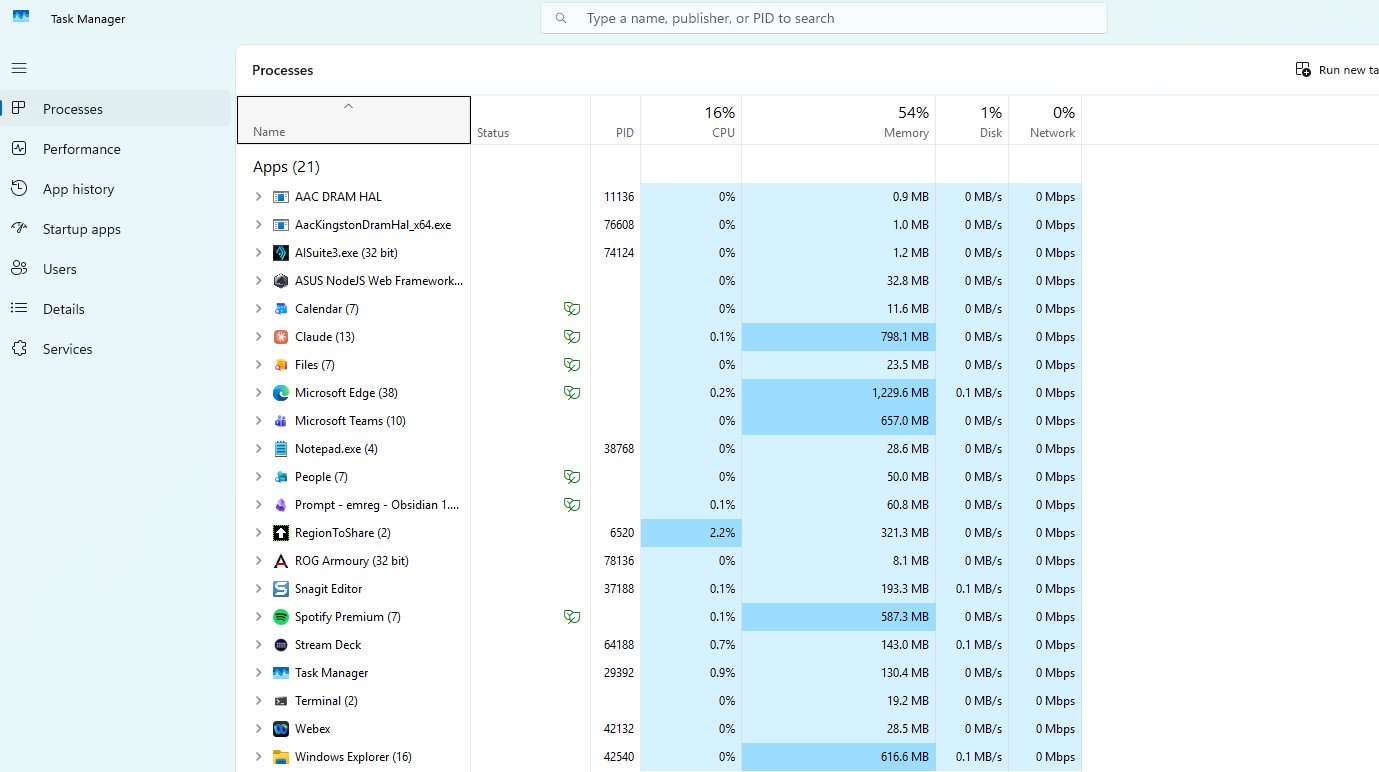
You've all opened this when something froze. This is your computer's EKG — the kernel showing you its work. Every row is a program. Every column is one of the four jobs.
| Configured for you (a human) | Configured for something else |
|---|---|
| GUI on by default | Could run with no screen at all |
| Sleeps when idle | Could stay awake for years |
| One user at a time | Could serve thousands at once |
| Programs run when you double-click | Programs run automatically in the background |
The kernel manages compute. Memory. Storage.
And one more thing — the network connection.
That last one turns out to be bigger than it sounds. Two computers, talking. Layer 3.
How computers find each other
Out of billions. Five concepts. One metaphor: mail.
Layer 3 · Networking · 9 min
You type youtube.com and a video arrives from a computer maybe on another continent. Out of billions, how does your laptop find that one?
Every computer on a network has an IP address — four numbers, like a street address. Public addresses anyone in the world can find. Private addresses only work inside one network.
In Azure, this is just called an IP address — same concept.
Computers with similar addresses live in the same subnet — a neighborhood. They reach each other directly. Different neighborhood? Different rules.
In Azure, this is called a Subnet — same concept, same name.
To reach a different subnet — or anywhere on the internet — traffic goes through a gateway. Your home router is one. Your school has one. Every cloud network has one. Same job every time.
In Azure, this is called a Gateway — same concept.
How does the gateway actually decide? It does a bitwise AND of the IP and the mask. The mask "covers" the network bits — the rest gets erased. Result: the network address.
Your laptop's packets hop through multiple gateways, each one checking its own routing table and forwarding to the next. Same mechanism we just saw — repeated at every hop. That's how the internet works.
One computer runs many services. Ports are the numbered mailbox slots — pick the right one. 443 = secure web. 22 = SSH. 3389 = Windows RDP. Universal numbers.
A firewall is a list of rules: port · from where · allow or deny. That's it. Every computer has one. Every network has one. Three columns.
In Azure, this list is called an NSG (Network Security Group) — same three columns.
Computers with IPs, grouped in subnets, exposing services on ports, protected by firewalls, reaching outside through gateways. You just designed a network.
Two computers can talk. The network finds them, the firewall guards them, the gateway connects them.
But this whole story assumes the other computer on the line is something built to handle thousands of these conversations at once.
What makes that computer different from your laptop? Layer 4.
The other end of the line
The computer your laptop's been talking to — what is it, actually?
Layer 4 · Server Computer · ~10 min
Same five things — CPU, RAM, storage, network, motherboard. But the shape, the size, the priorities — all different. It's not designed for you. It's designed for the network.
About 4 cm tall. No monitor. No keyboard. Slides into a rack like a drawer. This is what serves you Minecraft.
Same five things — just a lot more of each
| Your laptop | A typical server | Because | |
|---|---|---|---|
| CPU | 8 cores · ~5 GHz | 96 cores × 2 sockets (≈ 192 threads) | many users at once |
| RAM | 32 GB | 512 GB – 2 TB (ECC) | hold many users' data in memory |
| Storage | 1 disk · ~2 TB SSD | 8–24 disks · hundreds of TB | capacity + redundancy (disks fail constantly) |
| Network | 1 NIC · 1 Gbps | 2–4 NICs · 25–100 Gbps each | thousands of conversations simultaneously |
| Power | 1 charger | 2 redundant PSUs · both live | don't stop when one fails |
Two of nearly everything. At scale, failure is constant — the server is built to keep running anyway. A laptop is built to mostly work. A server is built to keep working through failure.
No monitor. No keyboard. Everything happens over the network — SSH for Linux, RDP for Windows. Plus a hidden second computer inside, the BMC, that runs even when the main server is off. The server inside the server.
One server. A rack of them. A row of racks. A building with tens of thousands. ~400 buildings like that, worldwide. That's Azure. Not magic — a lot of servers.
We've seen the hardware. Bigger, faster, redundant, remotely managed, lives in a rack alongside hundreds of others.
But hardware is just metal and silicon. What runs on it?
The same OS as your laptop? Different? Layer 5.
The OS with nobody home
Same kernel concept. Built for a world where no one is sitting at the keyboard.
Layer 5 · Server OS · ~10 min
Way back in Layer 2 we drew this. Same heart — the kernel. Different bodies. The right column didn't have a name yet. Now it does: Server OS.
Four things the hardware demands from the OS. Each one comes straight from Layer 4. The OS is shaped to fit.
Same underlying jobs. No icons, no mouse — just text. A huge share of the internet's servers look like the right side. The people who run them prefer it that way.
Laptop programs run because you launched them. Server programs run because they were configured to run forever. Different model entirely.
Your laptop has one user — you. A server has thousands of simultaneous sessions, isolated from each other. Same kernel mechanism from Layer 2 — just stretched.
Two flavors. Both are server OSes — same shape, different details. Not opposites. Variants.
In Azure, deploying a VM asks Windows Server or Linux? — now you know what the question means.
You've now seen the full stack. Hardware shaped for the network. An OS shaped for that hardware.
But here's the strange question — what if the hardware itself could be faked? What if one server could pretend to be many?
Layer 6.
Faking the hardware
Software pretending to be hardware. The single trick that makes the cloud possible.
Layer 6 · Virtualization · ~12 min
Servers are huge. Apps are small. Buying one server for every app is massively wasteful. How do many small apps share one big server — without seeing each other?
Insert a piece of software between the OS and the real hardware. Tell the OS: "here's your hardware." The OS believes it. The hypervisor is software pretending to be hardware.
Six VMs on one server. Different OSes. Different sizes. All running side by side, none of them aware of each other. The hypervisor slices the real hardware and shows each VM only its share.
Three VMs on one server — a bank, its competitor, a game server. None of them can see the others. Same boundary-enforcement mechanism from Layer 2 — just at a different level.
Same question, wildly different answer. New server? Weeks vs. minutes. Space in a datacenter? Real square meters vs. zero. Move it? Days vs. minutes. The pin from Layer 1 finally pays off — a VM has the four roles too, they just aren't real.
You can do this on your own laptop tonight. Windows 11 has a built-in hypervisor called Hyper-V — search "Turn Windows features on or off," check the box, reboot. From there, open Hyper-V Manager and create a VM running Linux or Windows Server — exactly like the screenshot. Real server OSes, running inside the same laptop you do homework on.
Mac users: try UTM or VMware Fusion — same idea, different brand.
You've now seen the trick. Software pretending to be hardware. One server, many VMs. Different OSes. All isolated.
Now imagine this — at hyperscale. Millions of VMs. Hundreds of buildings. Charged by the minute. Anyone can rent one with a credit card.
Layer 7.
Azure
Same five things — owned by someone else, at hyperscale, rented by the minute.
Layer 7 · Azure · ~17 min
Take Layer 6's hypervisor — multiply by millions. Spread across ~400 datacenters. That's Azure. And you're already using it.
Sixty years of work. None of this was invented overnight. Each step solved a problem the previous step opened up. The cloud is the convergence of virtualization and server-OS — riding on decades of compounding ideas.
Every Azure concept you'll meet — VNet, Subnet, NSG, VM, Region, Hypervisor — is a thing we already covered, with a new name on it. Azure has no new ideas. Only new names for old ones.
The technical trick made the cloud possible. The economics made it change the world. A credit card. Anyone. Any size. Stop paying the moment you stop using it.
Switching to the Azure portal now. We'll deploy a real VM, connect to it, then delete it. ~8 minutes of live work. Listen for the words you already know.
Every click in that demo was a concept we covered. No magic. A portal calling a hypervisor, building a VM, booting an OS, joining a network. All of it — yours to rent.
Azure isn't magic. It's the same computer you have at home — plus five ideas stacked on top. That's all the cloud is. You now know enough to build on it.
Four no-cost paths forward. Free Azure credit for students. Free interactive labs. Free certification study path. Or just your laptop — tonight. Pick one. Then another.